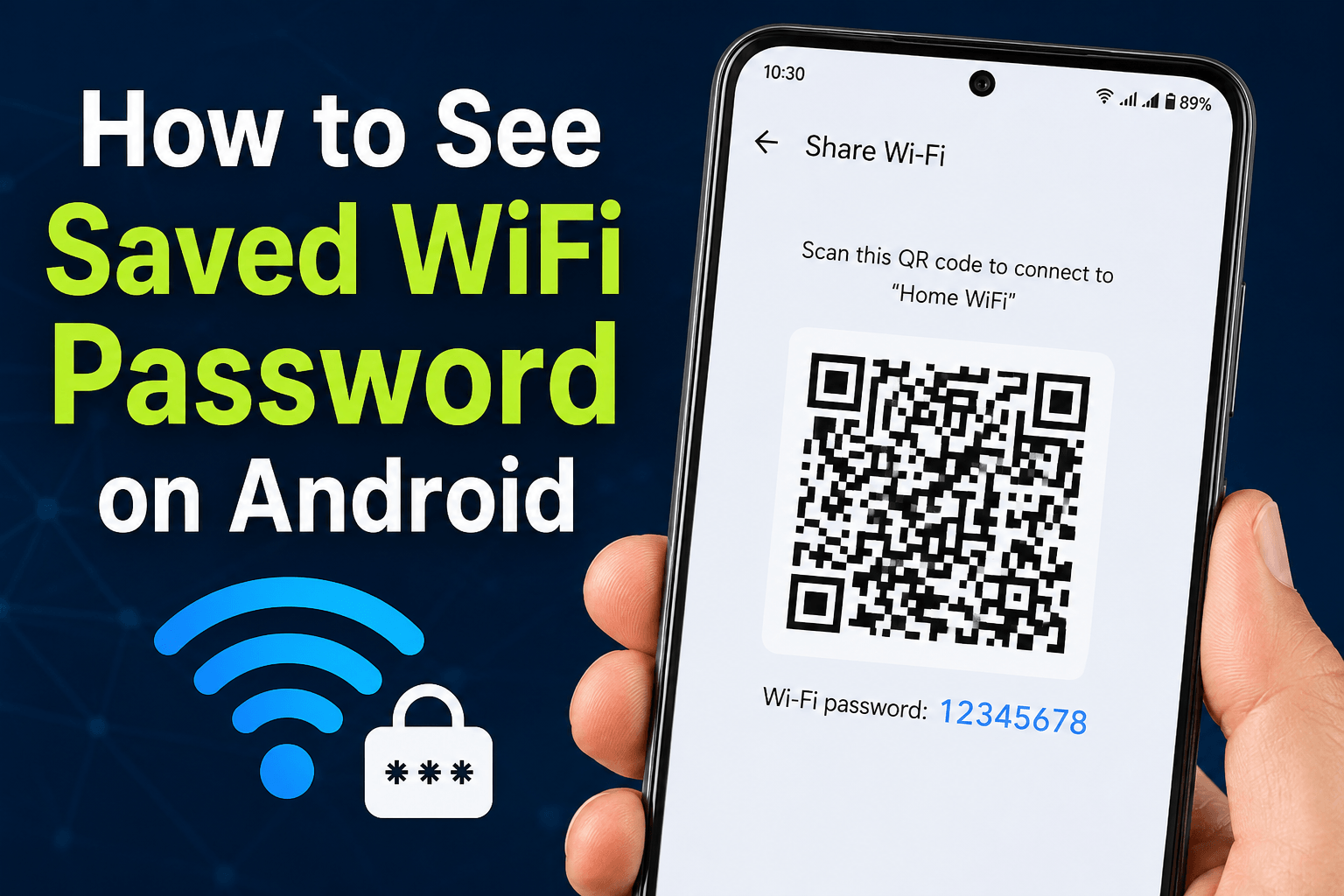
Have you ever connected your Android phone to a WiFi network and then completely forgotten the password later? It happens more often than you might think. Maybe you want to connect another device, share the password with a friend, or simply keep a record of it for future use.
The good news is that Android makes it easy to view saved WiFi passwords on most modern devices. You don’t need advanced technical skills, and in many cases, you won’t even need to root your phone. With just a few taps, you can find the password of a WiFi network that your device has already connected to.
In this guide, I’ll show you how to find saved WiFi password on Android step by step. You’ll also learn different methods that work on various Android versions, along with solutions if you can’t see the password on your device.
How to Find Saved WiFi Password on Android 10 or Newer Version
If your phone is running Android 10 or a newer version, you can easily view the password of a saved WiFi network without rooting your device.
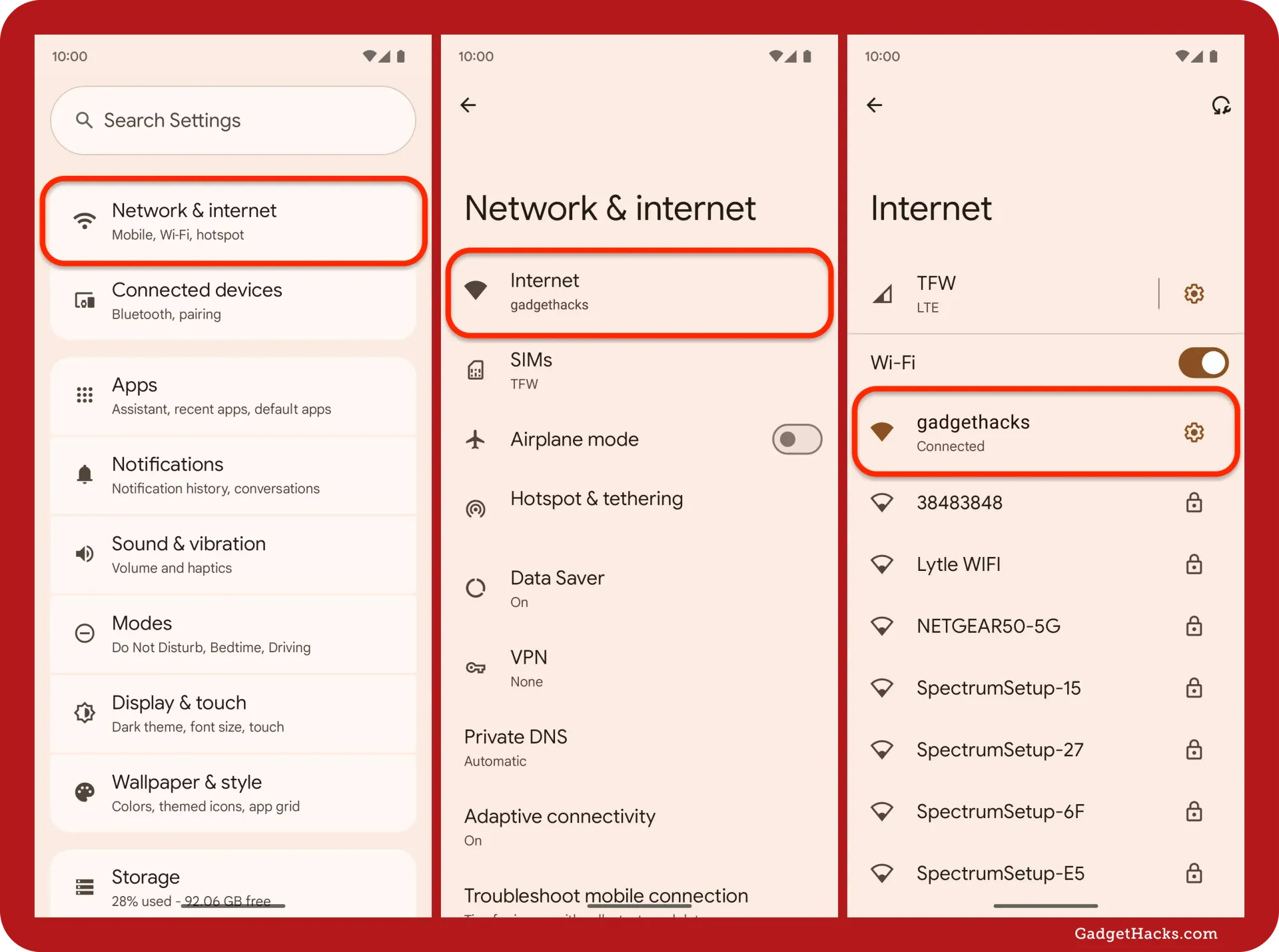
Steps to Find a Saved WiFi Password on Android
- Open the Settings app on your Android phone.
- Tap Network & Internet or Connections (depending on your device).
- Select WiFi.
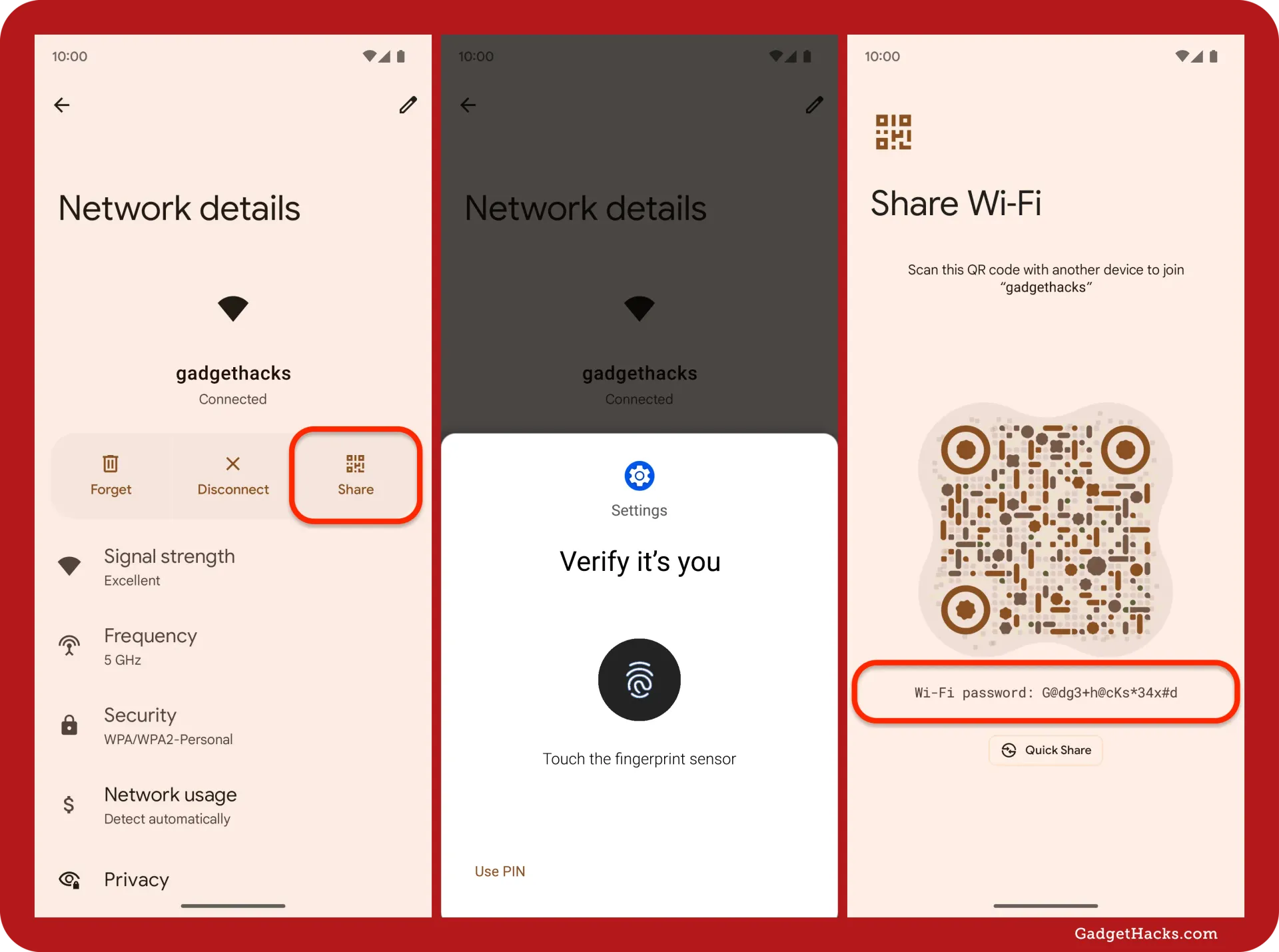
- Tap the WiFi network you are currently connected to.
- Choose the Share option.
- Verify your identity using your PIN, password, pattern, or fingerprint.
- The WiFi password will appear on the screen below the QR code.
Most Android devices running Android 10 or later support this feature, making it easy to view and share saved WiFi passwords without installing any third-party apps.
Note: This method works on Android 10 and newer versions. If your phone is running Android 9 or an older version, check the methods below.
How to See a Saved WiFi Password on Android (Not Currently Connected)
What if you’re not currently connected to the WiFi network but still want to see its saved password? The good news is that many Android phones let you view passwords for previously saved networks as long as the network information is still stored on your device.
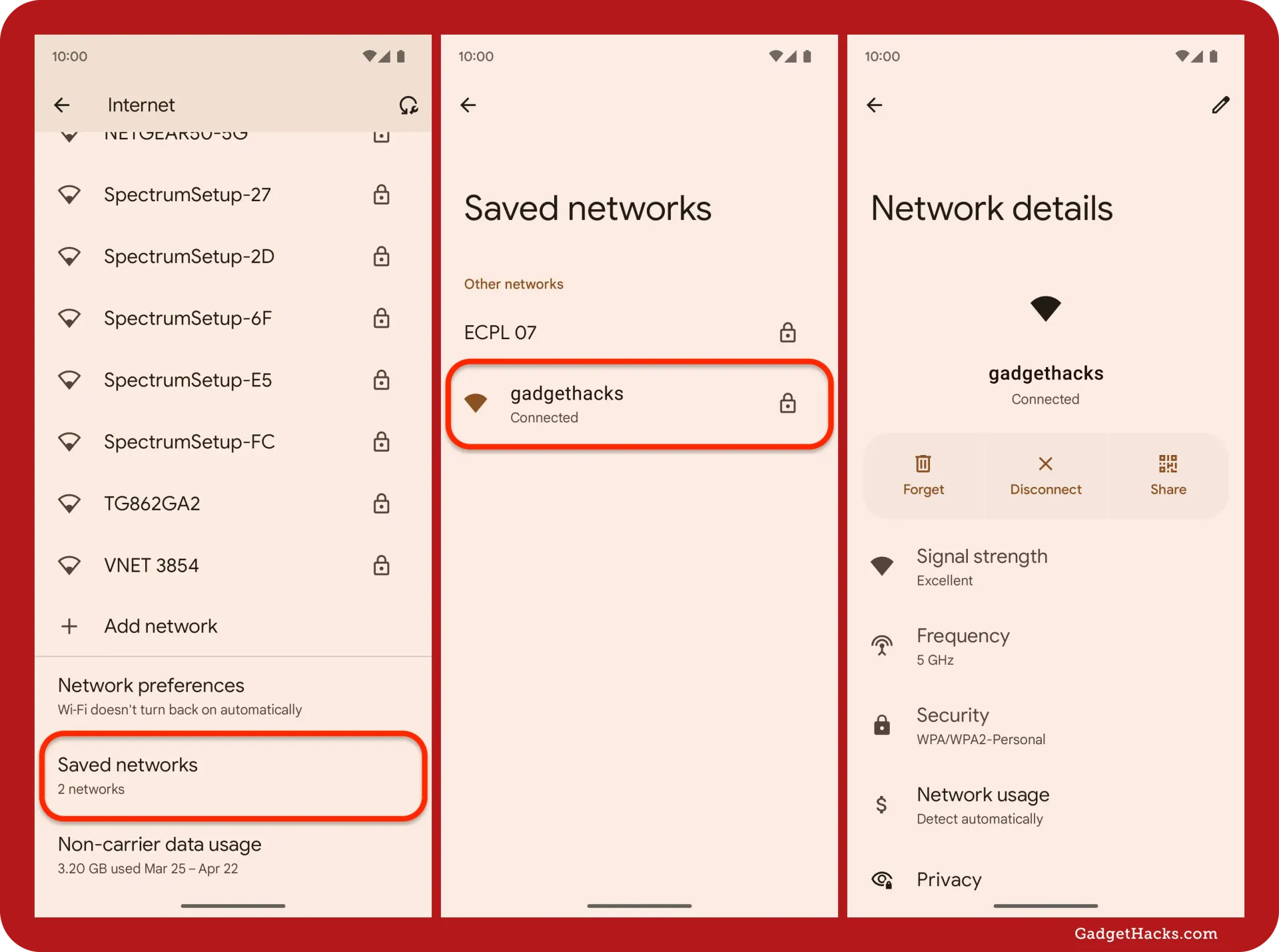
Steps to View a Saved WiFi Password on Android
- Open the Settings app on your phone.
- Tap Network & Internet, WiFi, or Connections.
- Select Saved Networks or Manage Networks.
- Choose the WiFi network whose password you want to see.
- Tap Share.
- Verify your identity using your PIN, password, pattern, or fingerprint.
- The WiFi password will be displayed on the screen along with a QR code.
If you don’t see a Saved Networks option, don’t worry. Different Android brands place this setting in different locations, so you may need to look around in your WiFi settings.
How to Find Saved WiFi Password on Android 9 and Older Versions
Android 9 and earlier versions do not include a built-in option to display saved WiFi passwords. Because of this limitation, viewing passwords is more difficult and may require additional access to system files.
Method 1: Check Your Router Label
- Look at the back or bottom of your WiFi router.
- Find the section labeled WiFi Password, Wireless Key, or Network Key.
- Use the listed password to connect your devices.
Method 2: Access Your Router Settings
- Open a web browser on a connected device.
- Enter your router’s IP address, such as 192.168.1.1 or 192.168.0.1.
- Log in using the router administrator credentials.
- Open the Wireless or WiFi Settings section.
- Locate the current WiFi password.
Method 3: Use Root Access (Advanced Users)
- Root your Android device.
- Install a file manager with root access.
- Navigate to the WiFi configuration files.
- Open the saved network configuration file.
- View stored WiFi passwords.
This method is only recommended for advanced users because rooting can affect device security and warranty.
How to Find Saved WiFi Password on Samsung Phones
Samsung phones include a built-in sharing feature that allows users to view saved WiFi passwords on supported Android versions.
Steps for Samsung Devices
- Open Settings.
- Tap Connections.
- Select WiFi.
- Tap the connected WiFi network.
- Press QR Code or Share.
- Verify your identity using fingerprint, PIN, or pattern lock.
- The WiFi password will be displayed along with the QR code.
On newer Samsung Galaxy devices, this is the easiest way to view and share saved WiFi passwords with family members, friends, or other devices.
Why Can’t I See My Saved WiFi Password?
If you are unable to view your saved WiFi password, one of the following reasons may be responsible.
Old Android Version
Older Android versions, especially Android 9 and below, do not provide a built-in option to display saved WiFi passwords. Google only introduced this feature starting with Android 10. If your device uses an older version, you may need to access the router settings or use alternative methods.
Manufacturer Restrictions
Some smartphone manufacturers customize Android and remove or modify certain features. As a result, the option to view saved WiFi passwords may be hidden, renamed, or unavailable on specific devices. Updating your phone’s software may restore access to this feature.
Work or School-Managed Device
If your phone is managed by an employer, school, or organization, administrators may restrict access to network settings. These restrictions help protect sensitive network information and prevent unauthorized sharing of passwords.
Permission Issues
Some Android devices require screen lock protection before showing saved WiFi passwords. If you do not have a PIN, pattern, password, or biometric authentication enabled, the password-sharing feature may not work correctly.
Alternative Method: View WiFi Password Using QR Code
Many Android phones generate a QR code when you choose the Share option for a connected WiFi network. This QR code contains the network details and can be used to view or share the password.
Steps to View WiFi Password Using a QR Code
- Open Settings and go to WiFi.
- Select the connected network.
- Tap Share.
- A QR code will appear on the screen.
- Take a screenshot of the QR code or display it on another device.
- Scan the QR code using Google Lens or a QR code scanner App.
- The network details, including the WiFi password, may be displayed.
This method is useful when you want to share internet access without manually typing a long password.
Tips for Managing WiFi Passwords on Android
Keeping track of your WiFi passwords can save time and improve security. Here are some helpful tips.
Save Passwords in a Password Manager
A password manager securely stores WiFi passwords, login credentials, and other sensitive information. Instead of writing passwords on paper or saving them in notes, use a trusted password manager to keep them organized and protected.
Use Strong WiFi Passwords
Avoid simple passwords such as “12345678” or “password.” A strong WiFi password should contain a mix of uppercase letters, lowercase letters, numbers, and special characters. Strong passwords help prevent unauthorized access to your network.
Update Your Android Device Regularly
Software updates often include security improvements, bug fixes, and new features. Keeping your Android device updated helps ensure better protection for saved WiFi passwords and improves overall device security.
Frequently Asked Questions (FAQs)
How to find saved WiFi password on Android?
If your phone is running Android 10 or a newer version, open Settings > WiFi > Connected Network > Share. After verifying your identity, the saved WiFi password will be displayed on the screen.
Can I see my Wi-Fi password on my Android phone?
Yes, most Android phones running Android 10 or later allow you to view saved WiFi passwords directly from the WiFi settings. The exact steps may vary depending on your device manufacturer.
Can I view a saved Wi-Fi password?
Yes, you can view a saved WiFi password if your Android device supports the feature. Simply open the WiFi settings, select the saved network, and use the Share option to reveal the password.
How do I find my Wi-Fi password without resetting?
You can find your WiFi password through your phone’s WiFi settings, router settings, or by checking the label on your router. Resetting the router is usually unnecessary unless you have completely lost access to the password.
How to know Wi-Fi password that already connected?
Open your Android phone’s WiFi settings and select the network that is currently connected. Tap Share and verify your identity. The password will then be displayed along with a QR code.
Conclusion
Now you know how to find saved WiFi password on Android using several different methods. If your phone is running Android 10 or a newer version, viewing a saved WiFi password is usually quick and easy through the built-in WiFi sharing feature. For older Android devices, you may need to check your router settings or use alternative methods.
If you’re having trouble finding the password, don’t worry. Simply follow the steps in this guide one by one, and you should be able to access or recover your WiFi password without much difficulty. Hopefully, this guide helped you find the information you were looking for and get your devices connected again. Happy browsing!